
How-to: Using Custom Controls
Custom Controls in Winforms and ASP.NET Webforms
A step-by-step guide on how to integrate the Chart4.NET Organization Chart Control into your .NET applications.
Case 1: Start from a Sample Project
The easiest way to get started is by using a pre-configured sample.
- Download an appropriate sample here (no installation required): Sample Downloads
Case 2: Start from a New Project
You can find the assembly in a named folder within the Sample Downloads.
- Create a Windows Application or ASP.NET Application project in Microsoft Visual Studio.
- To use the control, you first need to add it to your Toolbox:
- Select Toolbox from the View menu (in Visual Studio), if the toolbox is not displayed.
- Right-click a blank area of the Toolbox and select Choose Items... from the context menu.
- From the .NET Framework Components tab, click the Browse button and select the downloaded assembly to include the control.
- The control's icon will then appear in the Toolbox, in the selected tab:
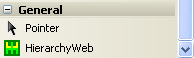
To use in a Winform project:
- Drag and drop the control icon onto the form to use it.
- You can write code to load the chart with data, as shown in the "Load Data" button in the Winform Designer sample project.
- Add chart events to extend functionality (Click on the control, select Events tab in Properties):
Double-click on the RHS area to link the event to a handler function within the code.
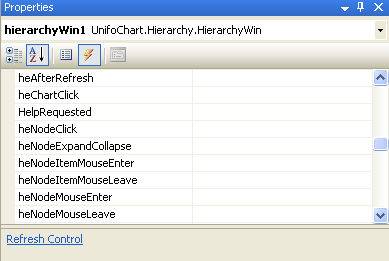
To use in an ASP.NET Webform project:
- Drag it from the toolbar onto the page. Doing this will add the following to the top of your page:
And you will see the following where the control is placed:
<%@ Register Assembly="UnifoChart.Hierarchy.Web.Free" Namespace="UnifoChart.Hierarchy" TagPrefix="cc1" %><cc1:HierarchyWeb ID="HierarchyWeb1" runat="server" Style="z-index: 102; left: 0px; position: absolute; top: 0px" /> - Click on the control and select the Events tab in Properties:
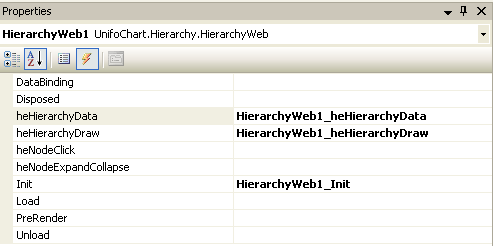
The event
heHierarchyData(to load data) is mandatory, while other events are optional.Double-click on the RHS area to link the event to a handler function within the code.
- The finished control tag in the page source will look like this:
<cc1:HierarchyWeb ID="HierarchyWeb1" runat="server" Height="400px" OnheHierarchyDraw="HierarchyWeb1_heHierarchyDraw" Style="z-index: 101; position: relative;" Text="MK" Width="700px" OnInit="HierarchyWeb1_Init" OnheHierarchyData="HierarchyWeb1_heHierarchyData"/> - The following code is needed to reference the control and access its properties:
using UnifoChart.Hierarchy; protected void HierarchyWeb1_Init(object sender, EventArgs e) { HierarchyWeb1.hpcSettings.Chart_Style = ChartStyleType.ThreeD; HierarchyWeb1.hpcSettings.Chart_Layout = ChartLayoutType.FlexiExtended; } - Put the logic in
Page_Loadto complete the setup:protected void Page_Load(object sender, EventArgs e) { if (HierarchyWeb1.hmIsOnRender()) // chart request { goto L_EXIT; } if (IsPostBack) { // TODO-1 goto L_EXIT; } // TODO-2 L_EXIT: return; }
Important Notes
Note 1: License Insertion
The first time you drag and drop the control, the license is inserted into the project (in the Properties folder). For this to happen, you must run Visual Studio 'As Administrator'. If you haven't set it to run as administrator by default, right-click the Visual Studio shortcut and select 'Run As Administrator'. This is required only for the first time inserting the control.
Note 2: Unblocking Downloaded Samples
If you get an error (usually in Visual Studio 2010) when opening a sample downloaded from the Internet like this:
Could not load file or assembly or one of its dependencies. Operation is not supported. (Exception from HRESULT: 0x80131515)
Right-click the downloaded .zip file, go to Properties, and click Unblock to resolve trust level issues.
Was this page helpful?
Thank you for your feedback!
Your input helps us improve our documentation.