

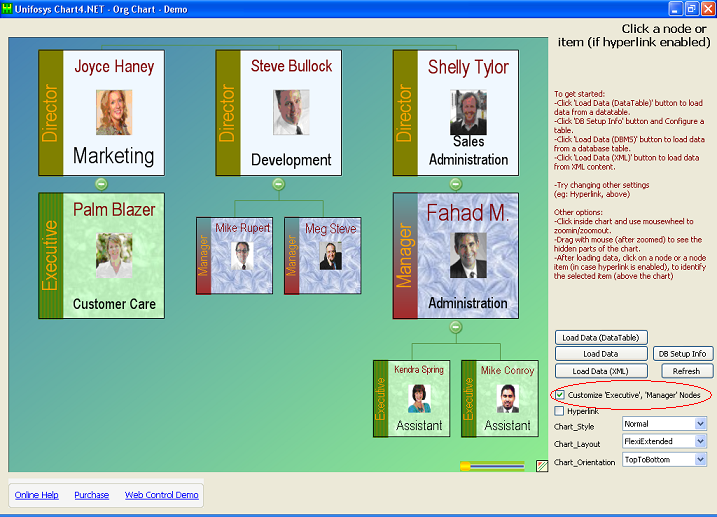
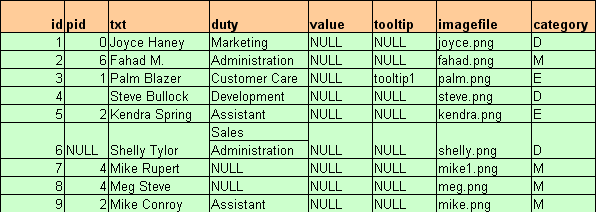
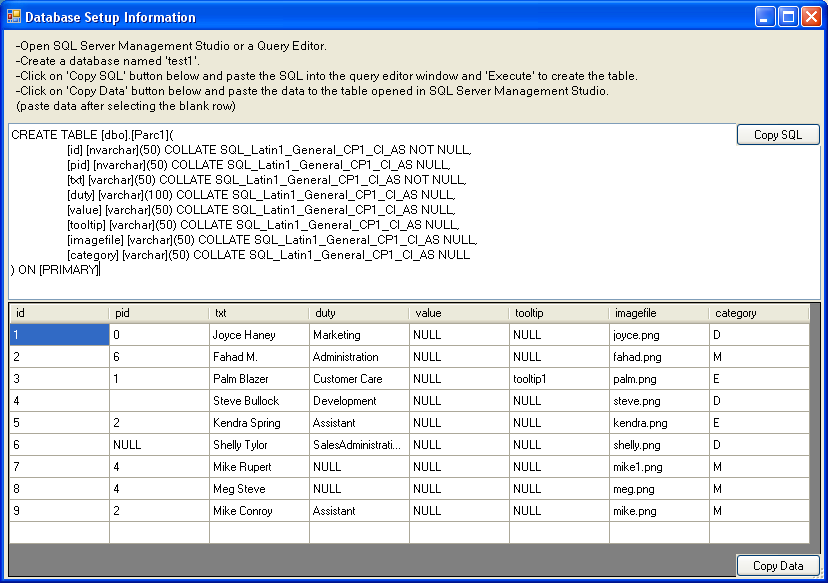
Note 1: The datatable column names can be anything you like. Only the order of values in datatable rows is important. The first column is taken as ID, second one as PARENT-ID and so on, as described in the table below.
| COLUMNS | MEANING | DESCRIPTION | DETAILS |
| Column1 & Column2 | ID & ParentID respectively | Represent the hiearchical realtionship of data items. | Two items having the same parentID are children of the item which has that ParentID as its ID. |
| Column3 | Text+Description | The title text and additional lines of text separated by \n. | Separate using \n. You have to set hpcSettings.Node_IsDataHasText = true; to apply separate formatting for title and additional lines of text (see the sample). |
| Column4 | Name | Name of the node. If not given, a default value will be assigned. | The value given will be returned (on clicking the nodes) and can be further processed to show the next page/frame/window/form of information (see the sample). To be applicable, you have to set hpDrillDownMode anything other than Navigate (see the sample). If you set hpDrillDownMode as 'JavaScript'; in that case you have to define a javascript function with 1 argument, in the scope of the webpage, namely nodeOnClick(nodname). Name will also be used in cases where DrillDownMode is NavigateNode (client-side for web request) or is PostBack (server-side). |
| Column5 | Tooltip | Normal rectangular box tooltip to show on the node. Has nothing to do with rich node-tooltip (hpShowToolTipNode) | If not given, the node text will be shown, if HierarchyWeb1.hpShowToolTip = true; |
| Column6 | Photo | Photo name. Photo will be loaded according to PhotoSpecification settings | You can load from files, by specifying a realative path in PhotoSpecification and photo name here (see the sample). Else you can make an imagelist from files or database table streams, and can assign it. See DesignerSample (winform) to see how to make an imagelist and how to use it |
| Column7 | URL | The web address to navigate (client-side without a postback) on clicking the node. | To be applicable, you have to set HierarchyWeb1.hpDrillDownMode=Navigate (see the sample). |
| Column8 | Tag | Tag is used to categorize the nodes like Director, Manager, etc. | You can customize nodes by assigning custom brushes and other settings for tags (see the sample). |
Note 2: You can give empty string for items that has no specific value (except first 3 columns of values; still root item(s) have PARENTID as blank).
Note 3: See the DatabaseSampleWeb for usage example for ASP.NET application. See DatabaseSample for winform sample (all columns except URL apply for winform control).